Working with images
When uploading images into Survey Buddy, it is recommended to first upload the image into RiSE-Page Builder-Manage images, and then use the path to that image in your survey. This avoids having to embed the image directly into the survey page which can impact website performance by increasing file size and page load time.
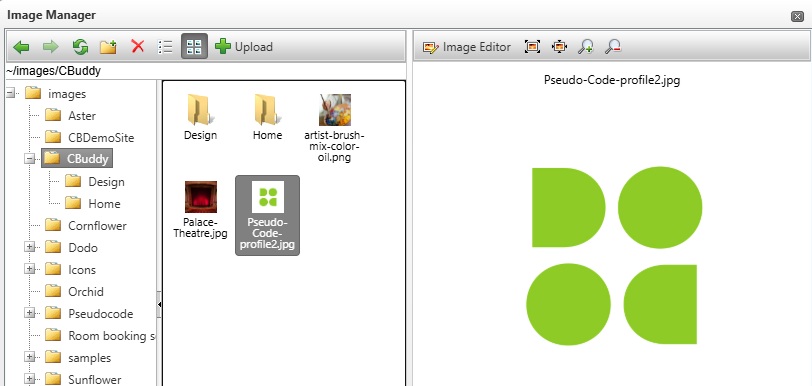
1. First you would go to RiSE-Page Builder-Manager images. Select the folder where you would like to upload the image and click 'Upload'. Then make note of the path and file name of the image.
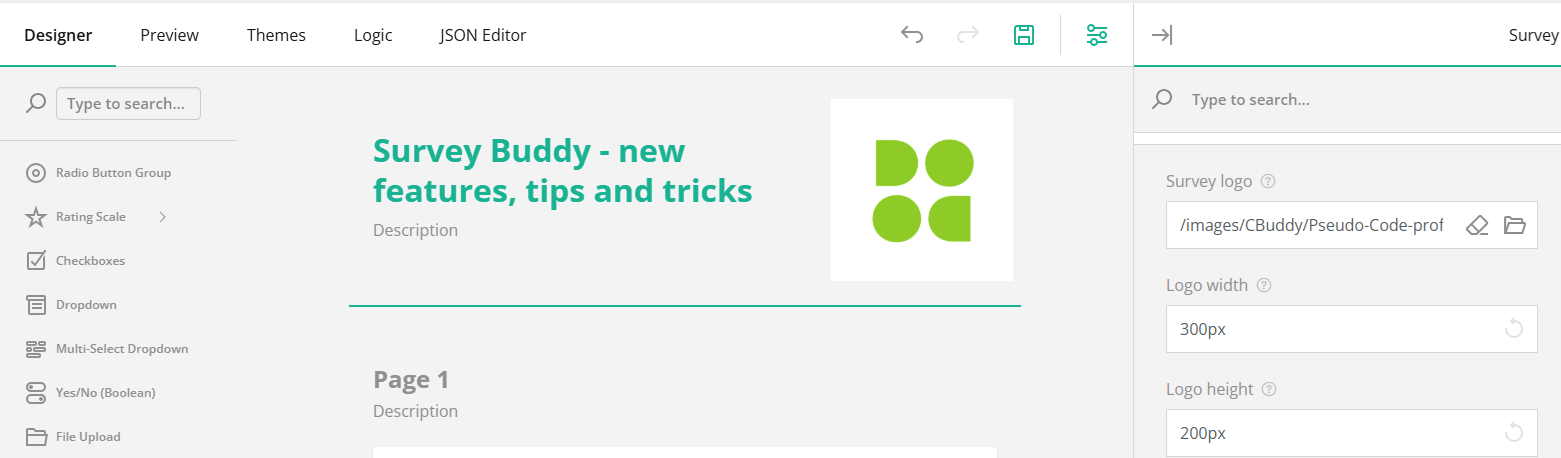
2. In Survey Buddy, where it asks for an image path, you can then enter the path. In the below screenshot, we are adding a survey logo image, however you can use this same approach for an 'Image' question type as well.
For example:
/images/CBuddy/Pseudo-Code-Profile2.jpg
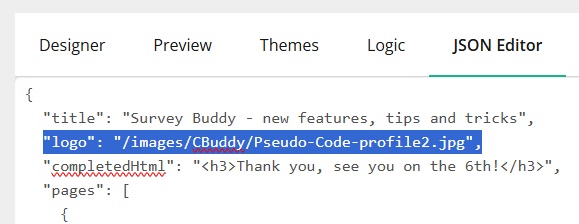
To provide an example of how it affects the size of the survey. Within the survey editor, you can switch to the JSON Editor view. This is what the JSON looks like when you point to an image in RiSE.
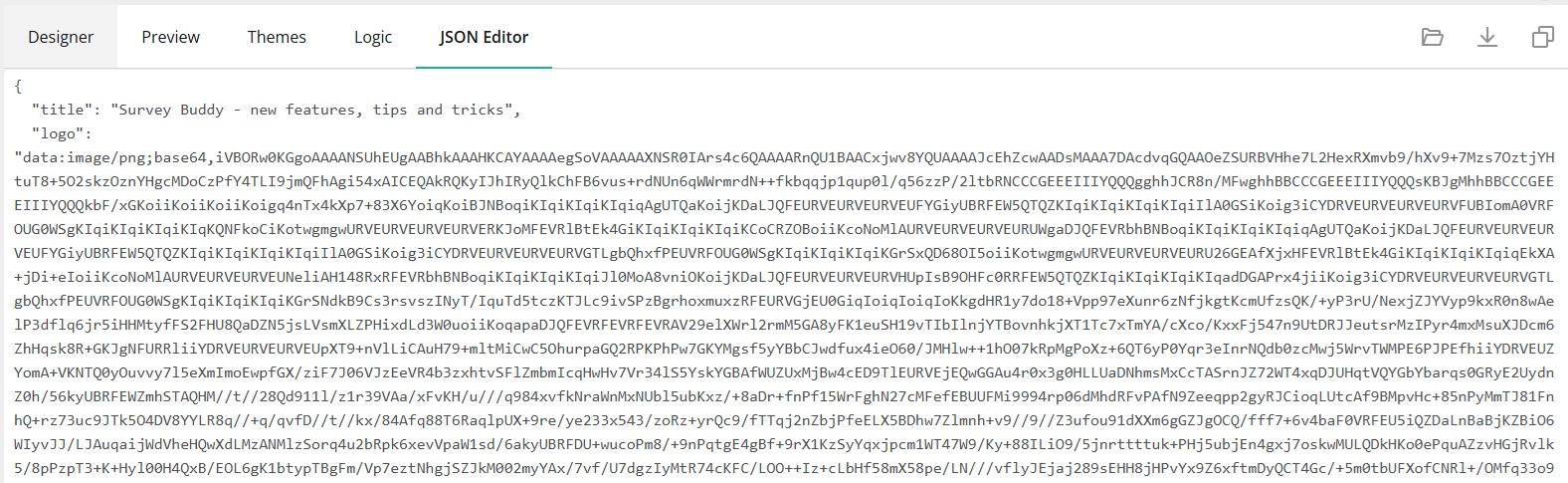
Versus what the JSON looks like, when you upload the image directly into Survey Buddy: