
Variants
The “Number of variants” selection controls the number of product variant types there are.

Can be either None, One or Two
- None is for a single product
- One presents a single list of options to choose between multiple products. For example: Colour or Size or Capacity.
- Two presents two options, combined to choose between multiple products. For example Colour and Size or Size and Capacity.
Two doesn’t tend to get used very often as it is often better to split into multiple one modifier products instead.
But it does have some use cases, particularly with apparel, tech products and different package sizes.

If you selected either One or Two variants we now need to specify those variants.
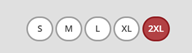
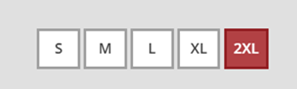
Display type is either Circle, Square or Swatch. The first two display the variant value inside a circle or square button respectively.
Swatch will display a circle using the variant value as a colour code. E.g #333333 for dark grey.

The preview panel shows you how the variant will be displayed. It also acts as a selector to choose the variant to:
- Remove, by clicking the red cross icon
- Set as the insertion point for inserting a new value. The new value will be inserted after the selected value.
- Set as the default value by clicking the green tick icon. This will be the option selected when the product display loads.
Values can be added by entering them into the Add values text box and either hitting the enter key or clicking the plus icon.